- Sampler & vocoder
- Adding samples via Wooveconnect
- Levels, VU Metering & monitoring
- Sampling sounds from the audio input
- Skip-back sampling (resampling)
- Vocoder
- Working with slices
- Auto-slicing
- Real-time pitch and time warping
- Amen chop tutorial
- Multi-sampled instruments and percussion
- Using the two sample banks
- Using samples and kits in your songs
- Using single-cycle AKWF samples
- Using Amiga Tracker samples
- Using Teenage Engineering OP-1 / OP-Z sample kits
- Kit and/or master sample initialization
- Backing up sample kits
- Auto-space reclaimer
- Limitations
- Amen chop tutorial
- Set constant length warp mode
Set constant length warp mode
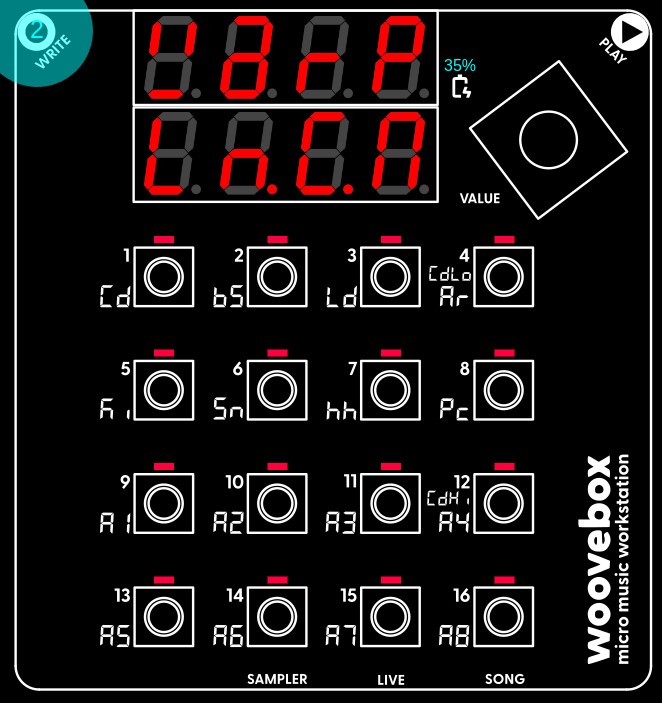
Multi-select all slices and set the "WarP" parameter to "Ln.C.M".
This mode ensures slice time is automatically varied so that it perfectly stretches the playback over the duration of the step length("Ln") as determined by your song's BPM, and keeps the pitch constant ("C"). The difference from the "Ln.C.S" mode, is that the slice's playback speed is scaled in proportion to (e.g. in context of) the full master ("M") sample length.
Try auditioning the slices after you have set their "WarP" parameter. If your auditioning length (hold write + turn value knob) is still set to 1 (default), you should hear short bursts as the slices are "crammed into" one step's worth of time.
Instead of hearing a fast burst, set the auditioning length to 16 (e.g. one bar, which is the actual length of the Amen drumloop we uploaded) however, and you will hear the drumloop play at a more normal speed.
Set the auditioning length to 32 and you should hear the drumloop play at half the speed (e.g. the sample is stretched over 32 steps at your chosen song BPM). You will also start hearing the quintessential "metallic" artifacts that the oldschool samplers were known and - depending on who you ask - celebrated for. Many Jungle and Drum and Bass tracks rely on these artifacts to impart further interest and energy on their breaks. As you will see, you can summon these artifacts on demand once it is time to build you new break in the sequencer.
As a side note, it is worth mentioning that you can also use the "Ln.V.M" mode, which does not apply the pitch correction at all and instead modifies the pitch of the sample to accommodate the time it needs to cover. This would have been the go-to technique to sync non-sliced sampled drumloops with different BPMs before time stretching was available. You can find this behavior in earlier Jungle tracks.
You can verify your sample kit is synced to your Song's BPM by leaving the sampler, setting your song's BPM, and returning to the sampler again to audition the slices in your kit once more. You will notice your slices will have sped up or slowed down according to the change in your song's BPM.
You may also be interested in...
- Pattern length and BPM divisor (under Tempo and BPM)
You should notice that these tracks will sound complex and interesting, but never quite random.
- Adding samples via Wooveconnect (under Sampler & vocoder)
If no sample kit is selected, the Woovebox will try to find the next available empty kit automatically.
- Using a sample kit (under Using samples and kits in your songs)
To quickly and conveniently create a sample kit patch out of a kit; In the sampler, select the kit you want to use ("US.01"-"US.16").
- Using a multi-sampled kit (under Using samples and kits in your songs)
'MSM2' switches to the sample whose pitch is closest to the target pitch, but only if that sample was recorded at a higher pitch.
- Uploading new samples (under Wooveconnect)
Please note that just like using the sampler, any uploads or changes are committed only once you switch away from the sampler.
- Sampler & vocoder
- Adding samples via Wooveconnect
- Levels, VU Metering & monitoring
- Sampling sounds from the audio input
- Skip-back sampling (resampling)
- Vocoder
- Working with slices
- Auto-slicing
- Real-time pitch and time warping
- Amen chop tutorial
- Multi-sampled instruments and percussion
- Using the two sample banks
- Using samples and kits in your songs
- Using single-cycle AKWF samples
- Using Amiga Tracker samples
- Using Teenage Engineering OP-1 / OP-Z sample kits
- Kit and/or master sample initialization
- Backing up sample kits
- Auto-space reclaimer
- Limitations