- Sampler & vocoder
- Adding samples via Wooveconnect
- Levels, VU Metering & monitoring
- Sampling sounds from the audio input
- Skip-back sampling (resampling)
- Vocoder
- Working with slices
- Auto-slicing
- Real-time pitch and time warping
- Amen chop tutorial
- Multi-sampled instruments and percussion
- Using the two sample banks
- Using samples and kits in your songs
- Using single-cycle AKWF samples
- Using Amiga Tracker samples
- Using Teenage Engineering OP-1 / OP-Z sample kits
- Kit and/or master sample initialization
- Backing up sample kits
- Auto-space reclaimer
- Limitations
- Amen chop tutorial
- Set ping-pong mode
Set ping-pong mode
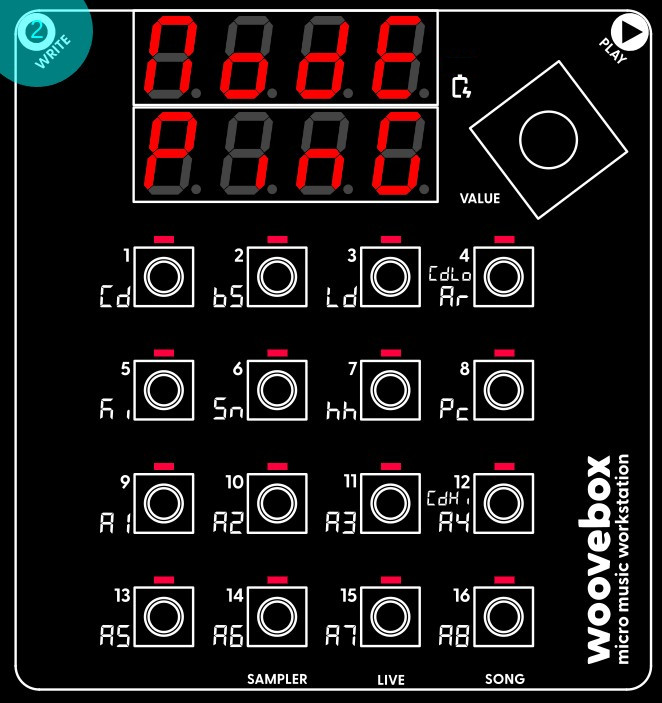
Multi-select all slices (e.g. hold one slice until it fast-blinks, then hold write and let go of the slice you were holding, now - still holding write - select all 16 slices until they all fast-blink).
Still holding write, press the value knob repeatedly to select the 'ModE' parameter. Turn the value knob to set it to 'PinG'. This mode ("ping pong" mode) plays a slice to the end, and then starts playing the slice in reverse until it is back to the start of the slice. It then starts playing forward again, and so on, and so forth.
Combined with each slice playing until the end of the master sample, and playing backwards and forwards continuously, means that you will never run out of audio for the duration of the note/step you program. It will furthermore play fragments of the master sample in reverse, which can add to the sonic complexity of your new break.
Of course, if you wish to deliberately run out of audio, you can use a different slicing mode and/or turn off "ping pong" mode.
Finally, note that instead of multi-selecting and setting all resulting slices to 'PinG', we could have also just set our single master sample's mode to 'PinG' before auto-slicing it instead; auto-sliced slices inherit the mode parameter from the original slice.
You may also be interested in...
- Launch Wooveconnect
Manage songs, samples, audio stems, firmware updates and more through Wooveconnect.
- 1. Pan (under Panning page)
- 5. Prt.S Portamento Speed (under Pitch page)
Please note that, in order to enable portamento, both a non-"off" speed and a non-0 probability must be set.
- 4. O3.Oc Oscillator 3 Octave (under Pitch page)
Specifies an octave by which the pitch should be lowered or increased, relative to the parent oscillator (as specified by O3.Lv).
- 14. L2.dp LFO 2 Depth (under Pitch page)
This value is in octaves, e.g. the LFOs can sweep 4 octaves up and down.
- Sampler & vocoder
- Adding samples via Wooveconnect
- Levels, VU Metering & monitoring
- Sampling sounds from the audio input
- Skip-back sampling (resampling)
- Vocoder
- Working with slices
- Auto-slicing
- Real-time pitch and time warping
- Amen chop tutorial
- Multi-sampled instruments and percussion
- Using the two sample banks
- Using samples and kits in your songs
- Using single-cycle AKWF samples
- Using Amiga Tracker samples
- Using Teenage Engineering OP-1 / OP-Z sample kits
- Kit and/or master sample initialization
- Backing up sample kits
- Auto-space reclaimer
- Limitations