- Full documentation, guide and tutorial
- Learning the Woovebox
- The very basics
- Quick start tutorial
- Tempo and BPM
- Tracks
- Patterns
- Live pattern recording
- Conditional triggering and modification
- Chords
- Arpeggios
- Scales and modes
- Genres
- Patches and Presets
- Sound design
- DNA dynamic patch cross-breeding
- Paraphonic parts
- Multi-instrument mode
- Risers, fallers, sweeps & ear candy
- Live mode
- Song mode
- Full song writing
- Sampler & vocoder
- Mixing & Mastering
- Lo-fi & vintage analog and digital emulation
- Randomization
- Hall effect sensor playing
- Advanced techniques
- Undo
- Boot modes
- Connecting other gear; MIDI, Sync, and audio pass-through
- Remote control expander mode
- Wireless MIDI over Bluetooth
- Connecting Bluetooth typing keyboard/touchpad
- Battery and charging
- Hardware quirks and limitations
- Understanding DSP load
- Looking after your Woovebox
- Firmware updates
- Full documentation, guide and tutorial
- Connecting Bluetooth typing keyboard/touchpad
Connecting Bluetooth typing keyboard/touchpad
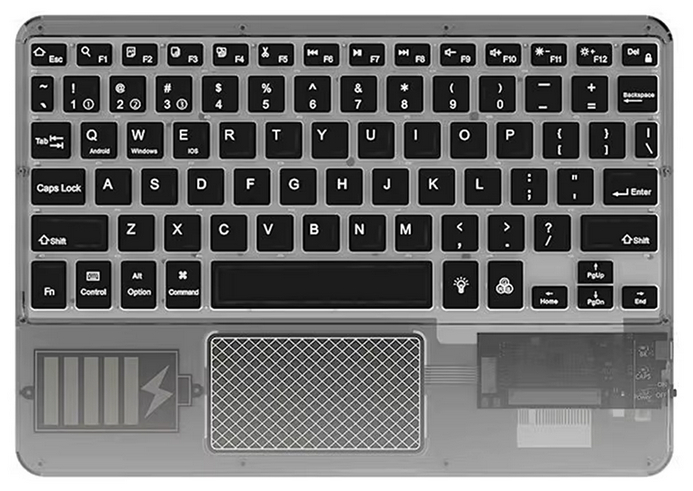
You can connect most regular Bluetooth® 4.0+ typing keyboards (Bluetooth Low Energy, aka Bluetooth Smart, Bluetooth LE or BLE) to your Woovebox for more extended, advanced access to navigation, playability and short-cut options. Please note that Bluetooth Classic-only devices are not supported.
Adding a Bluetooth keyboard (optionally with built-in touchpad/mouse and scroll-wheel functionality) is a cost-effective way of expanding the control surface of your Woovebox for situations where you have a bit more room and prefer a more "pseudo" DAW-like experience.
To connect such a standard compatible HID ("Human Interface Device"), boot your Woovebox in Bluetooth host mode, by holding 4/Ar when turning it on ("hoSt bLE"). Note that this is the same mode that allows you to connect MIDI over Bluetooth LE devices. Please also note that you cannot presently connect multiple devices at the same time, so please ensure no other Bluetooth LE device is advertising than the one you are intending to connect to.
Next, turn on your Bluetooth keyboard and then initiate its availability advertising (please see its manual - it is usually a key combo). As soon as the keyboard starts advertising, your Woovebox will detect it and establish a connection. From thereon you can control your Woovebox using the special keys, gestures and short-cuts.
Two modes ("normal mode" and "performance mode") are available by using the Caps Lock key;
- Normal mode (Caps Lock off) provides DAW-like shortcuts for controlling your Woovebox, such as copy/paste, init, randomize, quantize, jumping to sound design pages, etc.
- Performance mode (Caps Lock on) turns parts of the keyboard (as well as the touchpad - if present) into a "tracker-style" two octaves of playable notes, inspired by the Amiga ProTracker and similar tracker software. It also switches the touchpad into an X/Y control surface. Most short-cuts from "Normal mode" will keep functioning, while holding down any write key (such as the Windows key or the tilde key) will temporarily switch the keyboard to Normal mode for easy note or chord programming.
Where available, the Caps Lock LED will indicate the mode (ON = Performance Mode, OFF = Normal Mode).
Key repeat for left and right keys (for value knob emulation/setting) mimics typical desktop OS behavior, with a delay after the first key of 250ms, then a repeat every 31ms.
Entering numerical values for parameters
If your Bluetooth HID device does not have a scroll wheel or mouse pad, entering large values using the left/right cursor keys could quickly become burdensome. Therefore an alternative mechanic exists to enter exact values for parameters;
To quickly specify an exact numerical value for a parameter, short-press the key (1-4, Q-R, A-F, Z-V) corresponding to the parameter. The Woovebox will remember which parameter was selected last. Now, hold the ALT key, and type in the value you wish to use for the previously selected parameter. Upon releasing the ALT key, the value will be set to the number you typed. Note that you may use backspace to correct or completely cancel your input.
Note that you may also specify negative values (by typing a '-' minus sign first). The latter also works for "pivot" parameters, which are parameters that use 0 (or off) as a pivot to select between two types or modes. Examples are panning, LFO depth, EG depth, bit crush, distortion, etc.
Though probably easier through using the left/right cursor keys, discrete parameters (for example wave type, filter type, etc.) may also be selected by entering numerical values. In that case, enter the 0-based index (e.g. 0 being the first item) of the discrete setting you wish the enact.
Enhancing your note and chord programming workflow
On a track's "SEq" page, with your keyboard in in Performance mode (Caps Lock on), notes or chords you play are detected and automatically placed in the programming buffer. Meanwhile, using any write-mapped key (such as the Windows key or the tilde key) will temporarily disable Performance mode and will enter Normal mode for the duration the key is down. This means that you can play a note or chord on your keyboard, and then afterwards program it directly into a step as usual, by holding a write-mapped key and pressing one of the 1-16 step location corresponding keys (e.g. 1-4, Q-R, A-F or Z-V). And of course, live recording (over dub or punch-in) works as expected.
HID devices known to work and not work
Some HID devices from some vendors will not work due to compatibility issues. If you purchase a device specifically for use with your Woovebox, please confirm that the device uses Bluetooth Low Energy (not Bluetooth Classic) and please ensure you can return it in case it does not work. Please note, the same keyboards may be offered under different names/brands. Please use these links are for visual identification purposes only.
Please let us know if you have some other device that works (or does not work) for you, so we can add to these lists.
Known to work
- Transparent Wireless Keyboard (link1, link2)
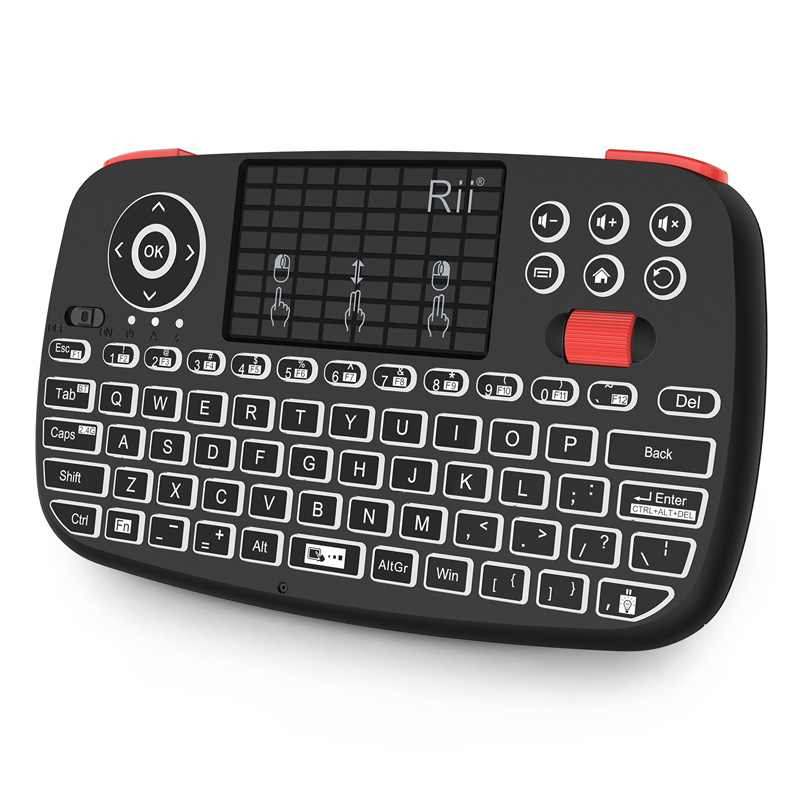
- Rii i4 "English Keyboard" version (not any other language versions) (link)
- 60% Wireless Mechanical RGB Keyboard (link)
- i10 i8 Mini Wireless Keyboard (please ensure it's the Bluetooth capable version) (link)
- Wireless Bluetooth 5.2 Keyboard Mini Wireless keyboard (aka "M7") (link)
- Logitech Pebble Keys 2 K380S (link)
- Logitech MX Keys Mini (link)
Known to not work
Caps Lock Modes
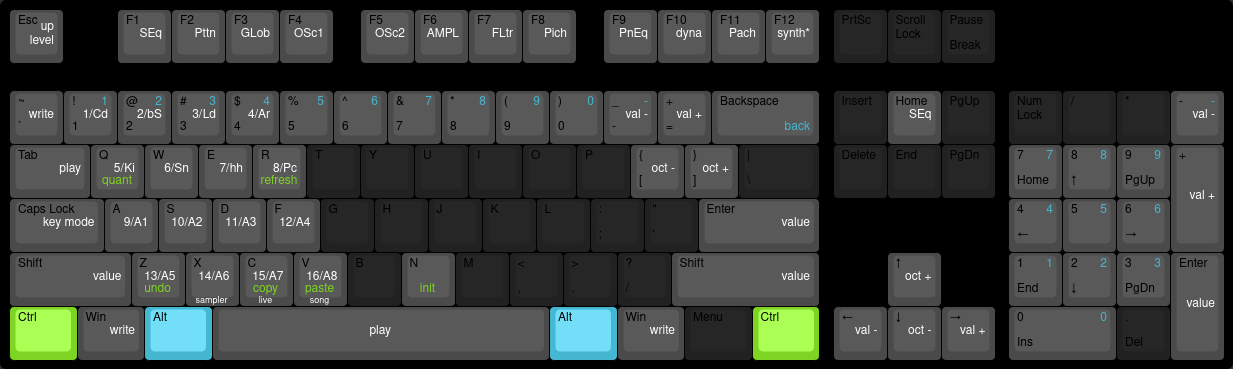
Normal mode controls your Woovebox as you are used to, however with some handy shortcuts to speed up your workflow.
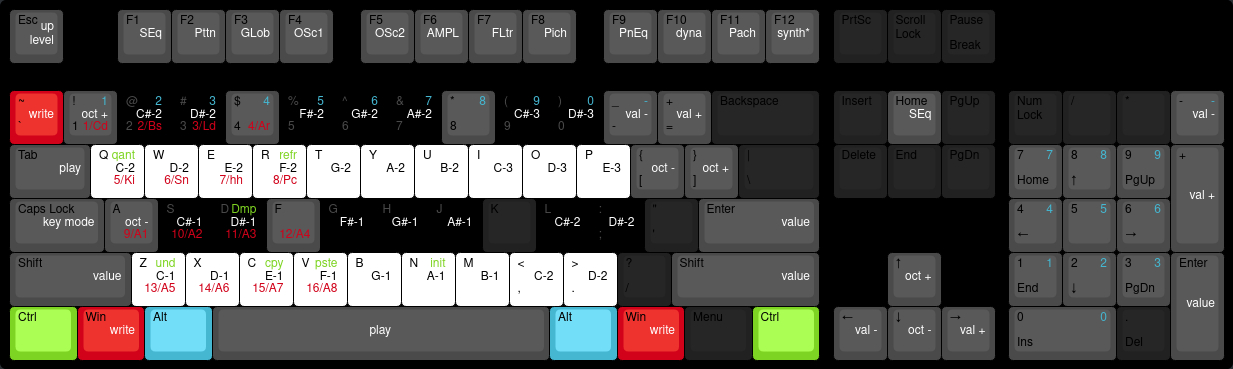
Performance mode turns your keyboard in a tracker-style musical keyboard and allows for quick note and chord programming.
Normal Mode (Caps Lock Off)
1/Cd - 4/Ar
1 - 4
5/Ki - 8/Pc
Q - R
9/A1 - 12/A4
A - F
13/A5 - 16/A8
Z - V
Write
~
Windows Key
Mouse Left-click
Play
Tab
Spacebar
Mouse Right-click
Value Push-in
Shift
Enter
D-Pad OK
Value Left/Right
Cursor Left/Right
Mousepad Left/Right Swipe
Mouse Scroll Wheel Down/Up
D-Pad Left/Right
Previous Track/Next Track
+/-
Octave Up/Down
Cursor Up/Down
D-Pad Up/Down
[/]
Track Editing Sequencer Page
F1
ESC/Home/Back (from any other track page other than SEQ page)
Track Editing Page GLob - Pach
F2-F11
Track Editing Synth Specific (e.g. Wavetable)
F12
Song Mode
ESC/Home/Back (from SEQ page)
Copy Pattern or Patch
CTRL+C
Copy Key
Paste Pattern or Patch
CTRL+V
Paste Key
Initialize Pattern or Patch
CTRL+N
Quantize Pattern or Pattern Chain
CTRL+Q
Refresh / Reload / Randomize Pattern or Patch
CTRL+R
Increase/Decrease Volume
Volume -/+ Keys
Performance Mode (Caps Lock On)
Upper octave
Q-P (with numeric keys acting as black keys)
Lower octave
Z-Period('.')
Octave Up/Down
1/A
Write
~ (temporarily cancels Caps Lock mode for the duration of this key being pressed down)
Windows Key (temporarily cancels Caps Lock mode for the duration of this key being pressed down)
You may also be interested in...
- Important notes (under Shop)
Please note no other cabling (such as USB-C charging) nor charger is included in order reduce waste, weight, and cost.
- 9. Attk Filter Envelope Generator Attack (under Filter page)
Attack defines the time it takes (in milliseconds) to ramp up from 0 full filter cut-off frequency (as specified by Cut.F and attenuated by FEG.d).
- Pitch modulation (under Sound design)
Pitch modulation and modification plays an important role in the Woovebox' sound synthesis engine.
- "What Is Love" (remake) song SYX (under Download 3.0 example songs and patches .SYX)
Patches of note are; The iconic (for the 90s) Lately Bass approximation.
- 16. L.C.ho hold duration for cutoff frequency LFO (under Filter page)
Specifies the hold duration in milliseconds for which the LFO should hold the LFO's sampled value.
- Full documentation, guide and tutorial
- Learning the Woovebox
- The very basics
- Quick start tutorial
- Tempo and BPM
- Tracks
- Patterns
- Live pattern recording
- Conditional triggering and modification
- Chords
- Arpeggios
- Scales and modes
- Genres
- Patches and Presets
- Sound design
- DNA dynamic patch cross-breeding
- Paraphonic parts
- Multi-instrument mode
- Risers, fallers, sweeps & ear candy
- Live mode
- Song mode
- Full song writing
- Sampler & vocoder
- Mixing & Mastering
- Lo-fi & vintage analog and digital emulation
- Randomization
- Hall effect sensor playing
- Advanced techniques
- Undo
- Boot modes
- Connecting other gear; MIDI, Sync, and audio pass-through
- Remote control expander mode
- Wireless MIDI over Bluetooth
- Connecting Bluetooth typing keyboard/touchpad
- Battery and charging
- Hardware quirks and limitations
- Understanding DSP load
- Looking after your Woovebox
- Firmware updates